Sign in to Argo CD via Identity Center
The managed Argo CD capability authenticates only through AWS IAM Identity Center. There is no local admin account and no auto-generated password — anyone who signs in does so with an Identity Center identity mapped to one of the three built-in Argo CD roles (ADMIN, EDITOR, VIEWER).
This page walks the one-time setup plus the first sign-in to the Argo CD UI. After this, you reuse the password you set here for the rest of Lab 2.
Disabling MFA weakens security for all users in the IAM Identity Center instance, not just the workshop user. Acceptable for a personal/dev/test account; do not apply this in a production account or shared organization.
The rest of Lab 2 drives Argo CD entirely through the Kubernetes API so it stays fully testable. Signing in to the UI is optional but recommended — the visual graph of the catalog stack is the most engaging part of the lab.
1. Identity Center user and group
Terraform pre-created the workshop user and group in AWS Identity Center. They were exported into your shell by prepare-environment:
eks-workshop-...-argocd-admin
eks-workshop-...-argocd-admins
https://....eks-capabilities.us-west-2.amazonaws.com
Pre-created user
$EKS_CAP_ARGOCD_USER: administrative user mapped to the Argo CDADMINrole.
Pre-created group
$EKS_CAP_ARGOCD_ADMIN_GROUP: group with administrative privileges, associated with the Argo CD capability.
2. Disabling MFA for Workshop
To simplify the authentication experience during the workshop, we'll disable Multi-Factor Authentication (MFA) for Identity Center users.
Steps to Disable MFA:
-
Navigate to Identity Center Console
- Open AWS Console
- Search for "Identity Center"
-
Select Configure MFA
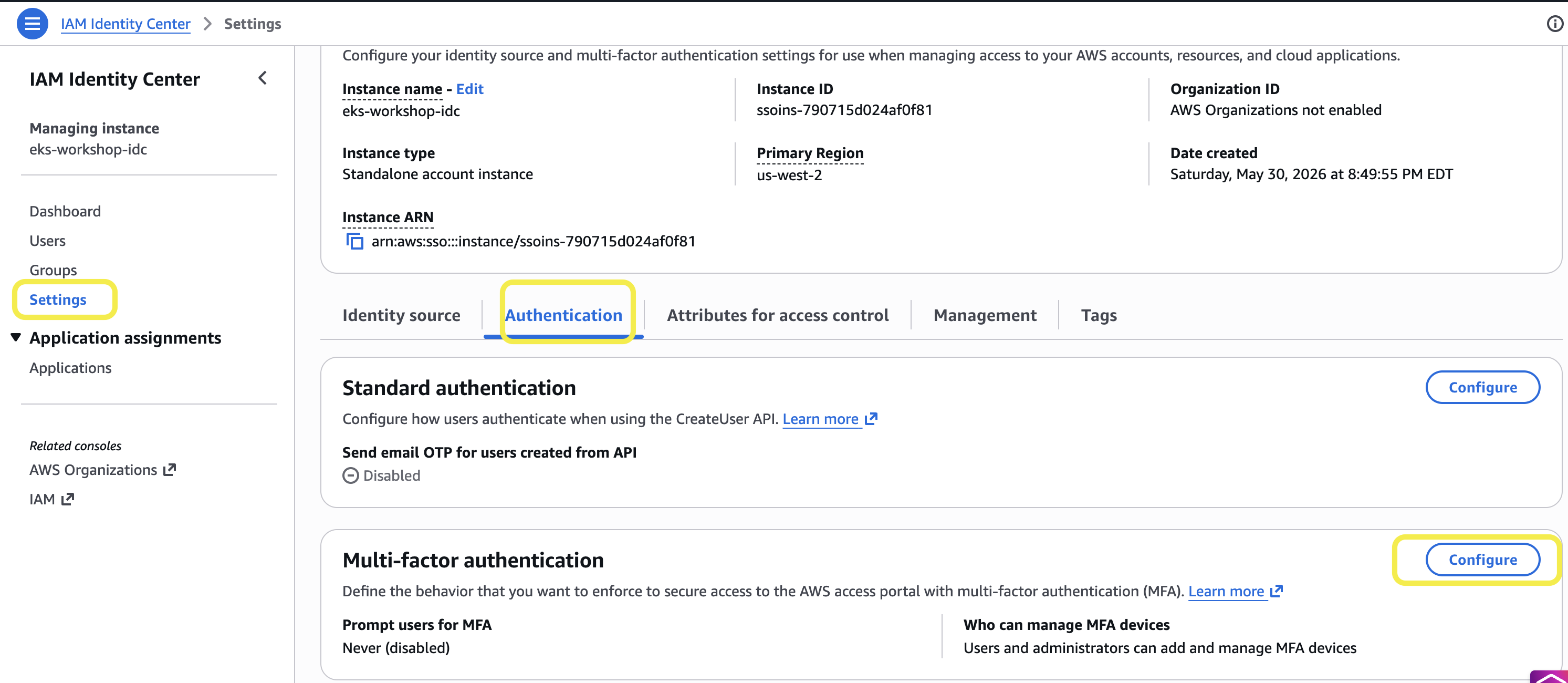
-
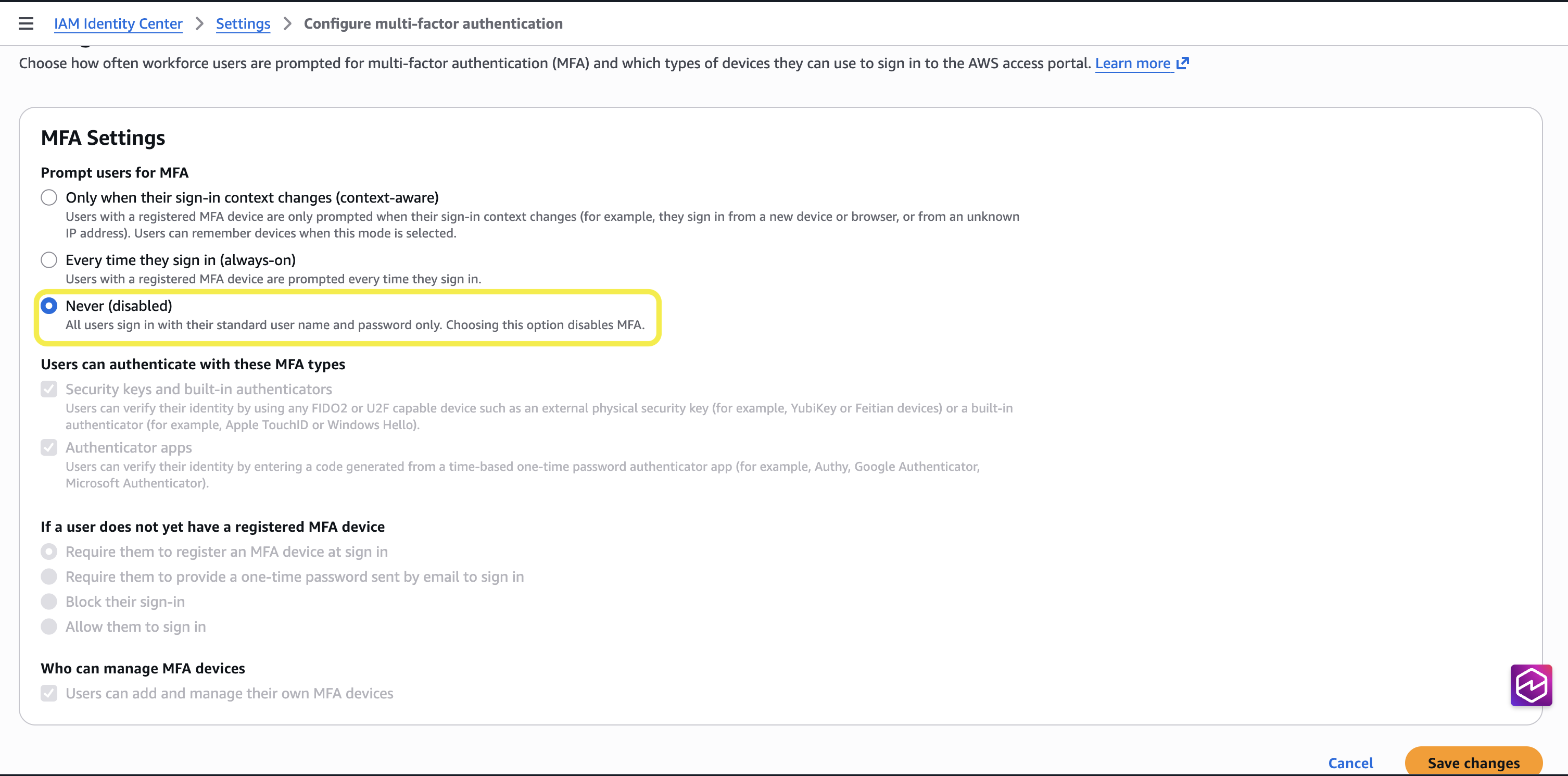
Disable MFA
- Select "Never (disabled)" in MFA Settings
- Save changes
3. Generate temporary password for the admin user
New users in Identity Center require temporary passwords to be generated by administrators.
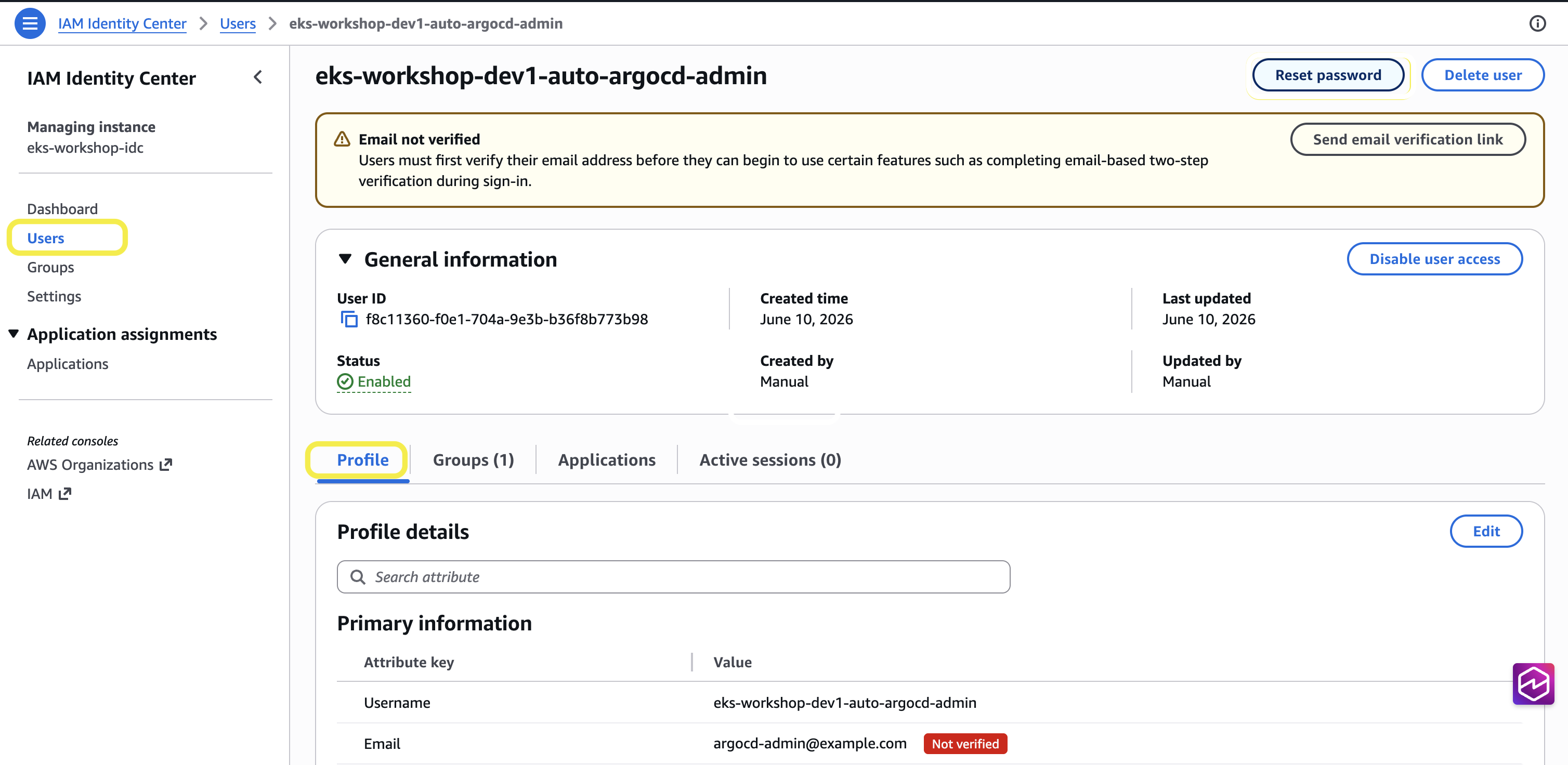
-
Select User
- Navigate to Identity Center → Users
- Find and select
$EKS_CAP_ARGOCD_USER
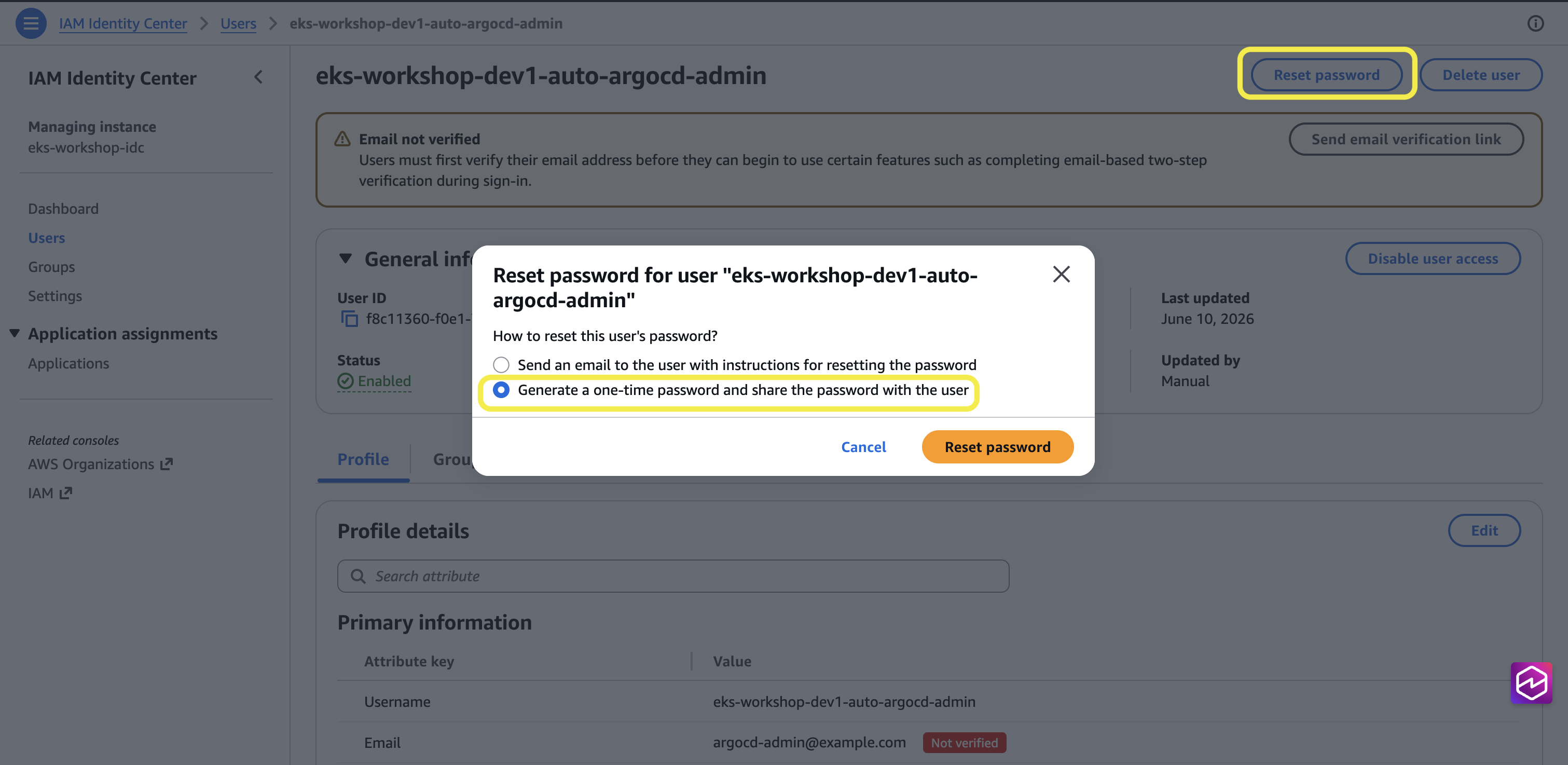
-
Reset Password
- Click "Reset password"
- Choose "Generate a one-time password"
-
Copy Temporary Password
- Copy the generated password
- Password will be used to login to the Argo CD dashboard in the next step.
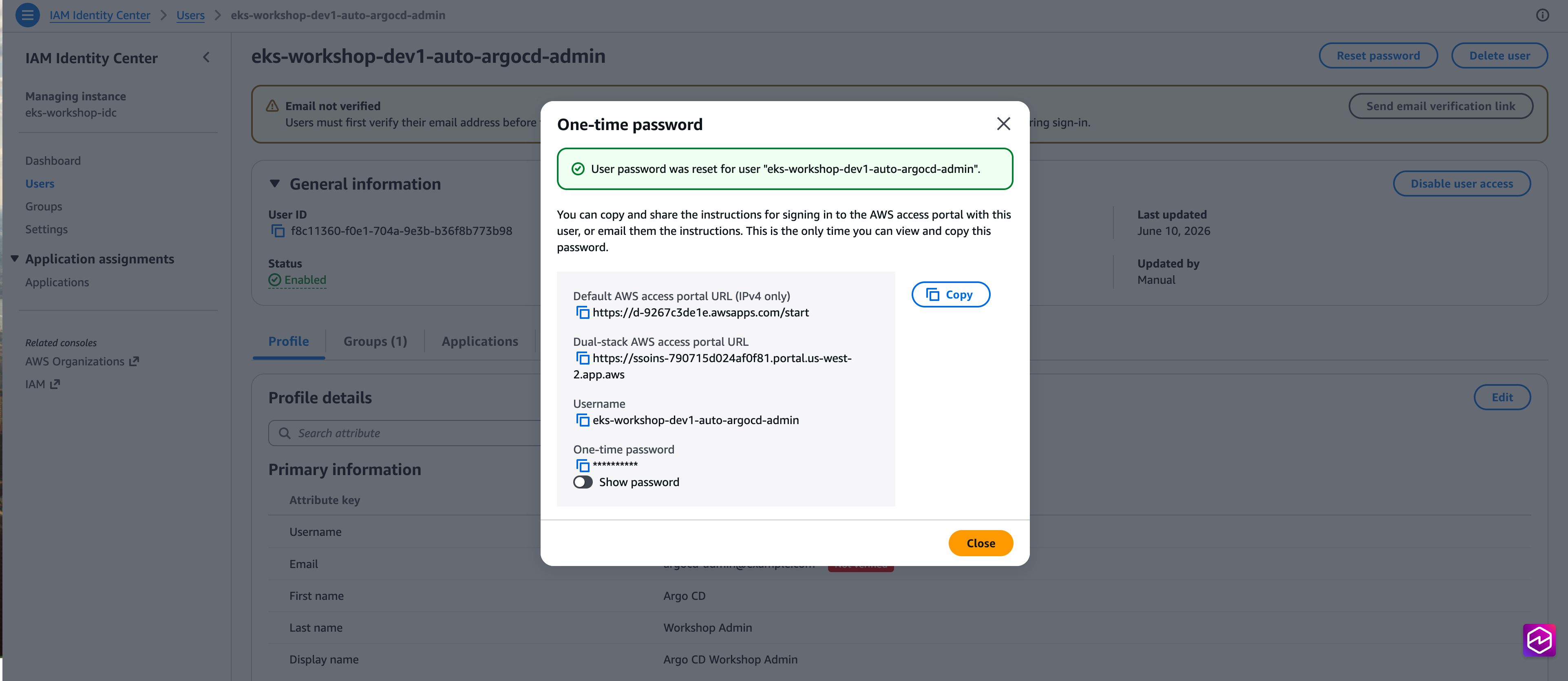
This password generation process will be referenced in other chapters when logging in as different users.
4. First sign-in to Argo CD
Open the Argo CD URL in a new browser tab:
- Click Log in via AWS Identity Center.
- Username: the value of
$EKS_CAP_ARGOCD_USER. Click Next. - Password: the one-time password you copied in step 3. Click Sign in.
- Identity Center forces a Set new password screen on first sign-in. Choose any new password and confirm it.
- After setting the new password you'll be redirected to the Argo CD Applications view as
ADMIN.
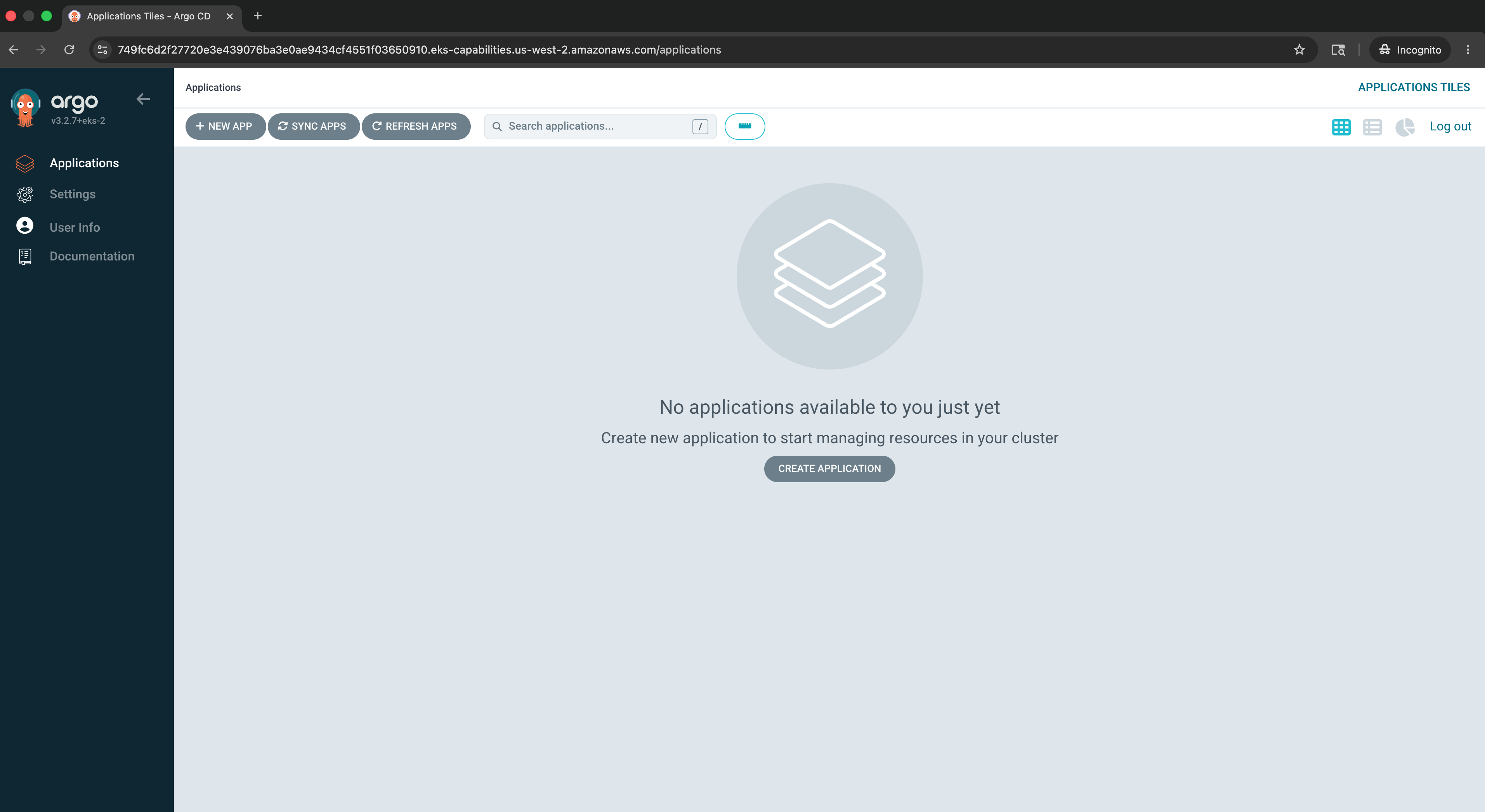
You can also reach the UI from the Amazon EKS console: select your cluster, choose the Capabilities tab, choose Argo CD, then Open Argo CD UI. Both paths route through the same Identity Center sign-in.
You're now ready to walk through the rest of Lab 2.